
The home screen that lists every dashboard you are allowed to see.
The overview is the first screen you see after signing in. It greets you by name and lists every dashboard you are allowed to open.
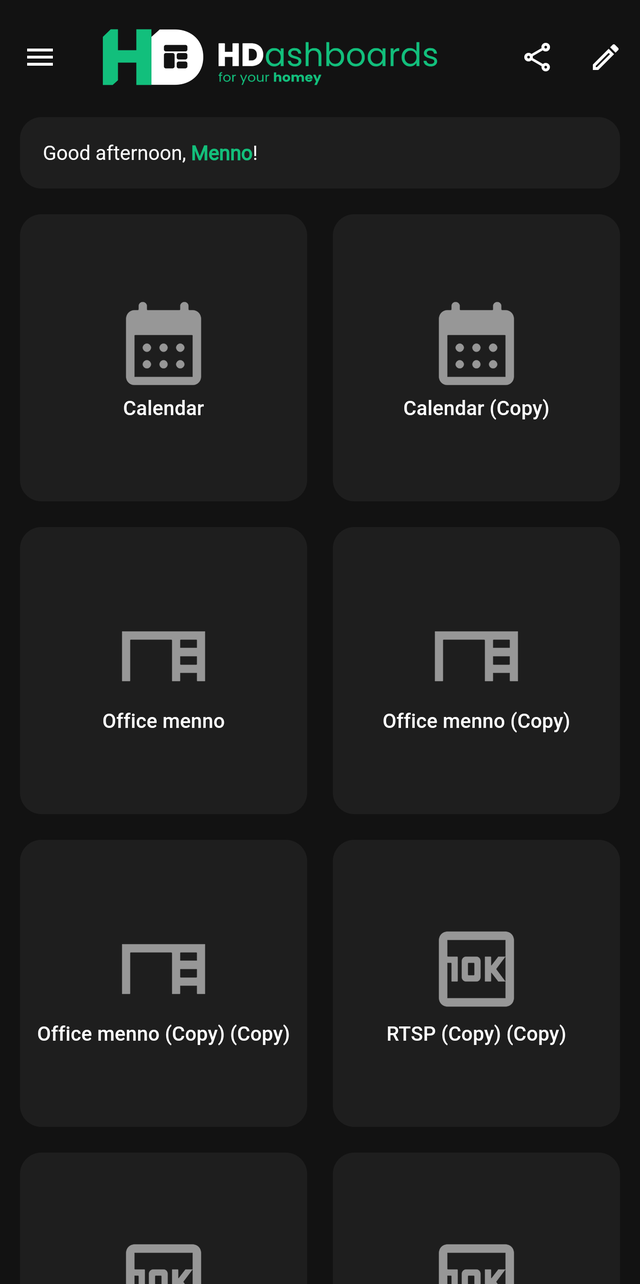
The greeting
The message changes with the time of day — Good morning, Good afternoon, Good evening, Good night. It is cosmetic, but it is a quick way to confirm the app knows who is signed in, which matters when several people share a wall tablet.
The dashboard tiles
Each tile is one dashboard. Tap to open it.
If you have set a background image on a dashboard, the tile shows it. Otherwise it shows the dashboard's icon.
Which dashboards appear depends on your account. A household member whose permissions limit them to two dashboards will only see those two. See Users and permissions.
The top bar
| Control | What it does |
|---|---|
| ☰ menu | Opens the side menu |
| Share | Share this dashboard, or copy an authenticated URL |
| Pencil | Edit the dashboard list — add, rename or remove dashboards |
The side menu
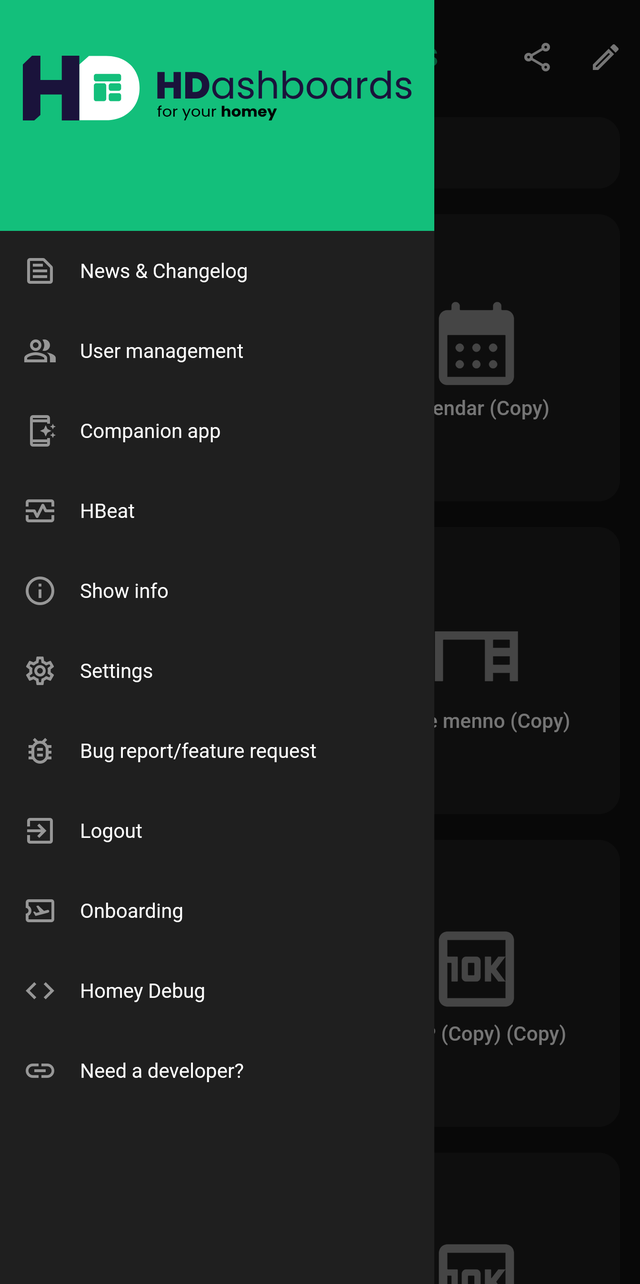
| Item | What it does |
|---|---|
| News & Changelog | What changed in recent releases |
| User management | Add and edit household logins (more) |
| Companion app | Set up the Homey companion app (more) |
| HBeat | Uptime monitoring for your Homey |
| Show info | The version you are running |
| Settings | App-wide settings (more) |
| Bug report / feature request | Send feedback |
| Onboarding | Replay the introduction |
| Homey Debug | Live event counters, for diagnosing a busy Homey |
| Logout | Sign out |
Skipping the overview
If you always want to land on the same dashboard — normal for a wall panel — set a Startup dashboard in Settings. Leave it empty to keep landing on the overview.