
Startup dashboard, theme, maximum width and inactivity timeout.
On this page
Reached from the side menu → Settings. These apply to the whole app on this device, not to a single dashboard.
For settings that belong to one dashboard, see Dashboard settings.
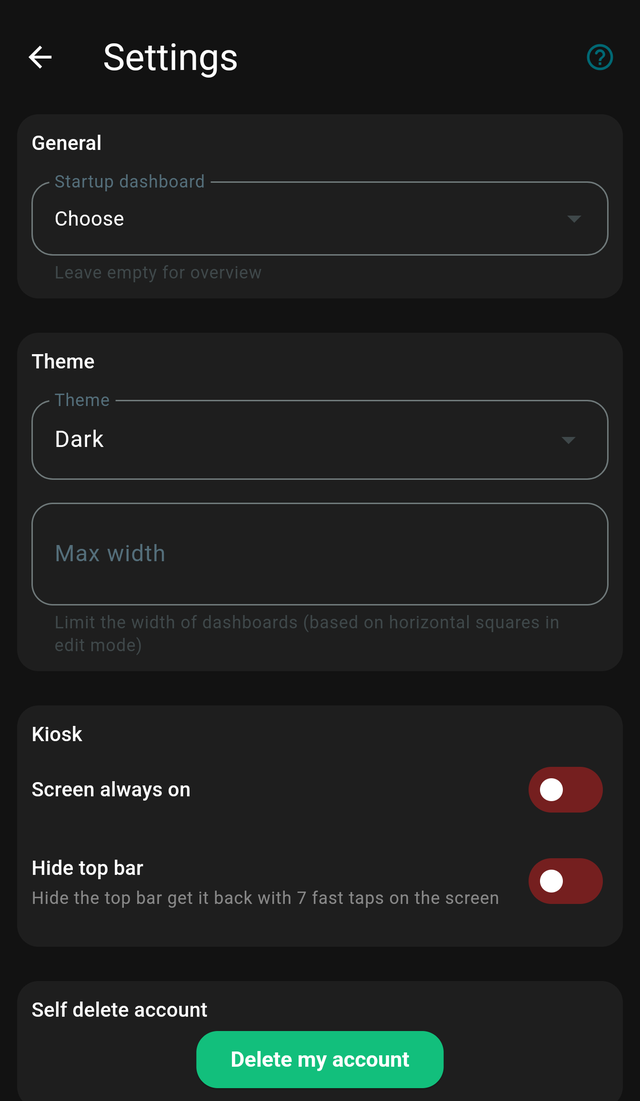
General
Startup dashboard
Which dashboard opens when the app starts.
Leave it empty and the app opens the overview screen. Set it and the app goes straight to that dashboard — which is what you want on a wall panel that should always show the same thing.
Inactivity timeout
Seconds of no interaction before the app returns to the main dashboard.
This is what makes a multi-dashboard wall panel work unattended. Someone opens the bedroom dashboard, walks away, and a minute later the panel is back on the home screen ready for the next person.
Leave it empty to stay wherever you last navigated.
Theme
Theme
Three choices:
| Option | Behaviour |
|---|---|
| Light | Always light |
| Dark | Always dark |
| Automatically | Follows the device's system setting |
Automatically is the usual choice on a phone. On a wall panel, picking Light or Dark explicitly avoids the display changing character at sunset.
Card colours you set in the Style tab do not change with the theme, so it is worth checking your dashboards in both.
Max width
Limits how wide dashboards may grow, in horizontal grid squares, across all dashboards.
On a large monitor an unconstrained dashboard stretches until the cards are uncomfortably far apart. A max width keeps the layout centred and readable.
Individual dashboards can override this in Dashboard settings.
Kiosk
Screen always on and Hide top bar are covered in Kiosk mode.
Screens
Shows how many screens your household uses right now against how many your account may use, for example Screens: 12 / 10. Manage screens opens your account on the website, where you can see every screen, sign out the ones you no longer use and add more.
A screen is one installed app on one phone, tablet or wall panel. It counts as in use when it was active in the last 10 minutes, and the screens of everyone in your household count together towards the owner's account. A Standard licence includes 10 screens at the same time, a Business subscription 25, plus any extra screens you bought.
When the account uses more than it may, the owner and members with settings access see a short notice on the overview screen. It can be dismissed and comes back at most once a day. See Too many screens for what happens to the newest screens.
Self delete account
Permanently deletes your account and everything in it.
This cannot be undone, and it is not the same as signing out. If you just want to use a different account on this device, use Logout in the side menu.