
Your Homey timeline, with an optional text filter.
On this page
Shows your Homey timeline — the running log of what happened in your home — inside a card.
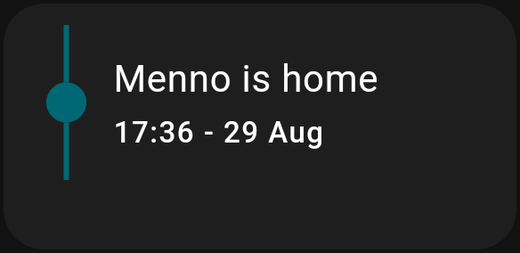
What it is for
- Confirming an automation actually ran.
- Seeing who came and went.
- Working out why a light turned itself on at 3 a.m.
Settings
| Setting | What it does |
|---|---|
| Text Filter | Only show entries containing this text. Leave empty for everything |
| Title | The card's heading |
Text Filter
The unfiltered timeline is busy, and on a dashboard that busyness is noise. The filter narrows it to what you care about.
Examples:
door— only entries mentioning a door.Frontdoor— one specific device.motion— motion events across the house.
The filter matches the text of the entry, so it depends on how your devices and flows are named. Consistent naming in Homey pays off here.
Tips
- Tall and narrow. A timeline is a list. Height shows more entries; width mostly wastes space.
- One filtered card beats one busy one. Two cards — one filtered to
door, one tomotion— are far more readable than a single unfiltered feed. - Add timeline entries deliberately. A Homey flow can write its own timeline entry. Adding one at the end of an important flow gives you a permanent record that it ran, which then shows up here.
Timeline or Syslog?
- Timeline — Homey's own human-readable log of home events.
- Syslog — technical system logging, filtered by severity and category.
For everyday use it is almost always the timeline you want.