
Control and monitor a single Homey device: lights, switches, sensors, blinds and locks.
The Device card is the one you will use most. It points at a single Homey device and adapts itself to whatever that device can do.
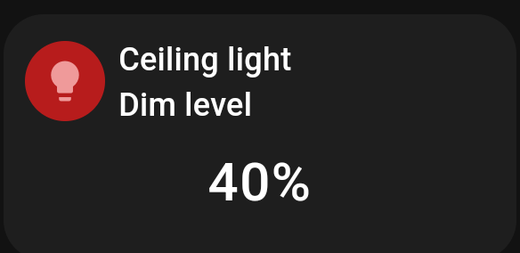
What it shows
HDashboards reads the device's capabilities and builds the card to match:
| The device has | The card gets |
|---|---|
| On/off | Tap the card to toggle |
| Dim, volume or position | A slider along the card |
| A lock | Tap to lock or unlock |
| Blind or curtain position | Up / pause / down buttons |
| A sensor reading | The value as text |
| A battery | A battery indicator |
| Colour or temperature (lights) | Full colour controls on long press |
You do not configure any of this. Point the card at a light and you get a light control; point it at a temperature sensor and you get a reading.
Tap and long press
- Tap — performs the card's on-tap behaviour. By default that toggles the device.
- Long press — opens the full device dialog, with every control the device offers: colour picker, colour temperature, all capabilities and sensor values.
The long press is worth knowing about. A light's card only shows a dim slider, but long-pressing it gives you the colour wheel.
Settings
Beyond the shared tabs, a Device card has:
| Setting | What it does |
|---|---|
| Device | Which Homey device this card controls |
| Label (capability) | Which capability to display as the card's main value. Leave empty for the default |
| Title | Overrides the device's name |
| Show controls | Show or hide the slider and buttons. Off gives you a display-only tile |
| Show subtitle | Show the device name under the title |
| Show icon | Show the device icon |
| Turn orange when an alarm is active | The whole card turns amber when any alarm capability on the device fires |
Label (capability)
This picks which value the card displays. Useful when a device reports several things — a smart plug that measures both power and energy, for example. Choose measure_power and the card shows watts.
If the chosen capability is a settable boolean, the card renders it as a switch or a play button rather than text.
Turn orange when an alarm is active
Best used on smoke, water and door sensors. The card turns amber the moment the alarm capability goes true, which is far easier to notice across a room than a small icon change.
Tips
- A display-only tile. Turn off Show controls and set on-tap behaviour to None in the Advanced tab. The card becomes a readout that cannot be pressed by accident.
- Protecting a door lock. Turn on PIN protection so the card asks for a code before it will operate.
- Confirmation instead of a PIN. For something disruptive but not sensitive — an "all lights off" switch — Needs confirmation? is lighter than a PIN.
- A light's colour on the card. When a light is on and has a colour, the card tints itself to match.
If the card says "not found"
The device no longer exists on your Homey, or the Homey it belongs to is disconnected. Edit the card and pick the device again.