
On-tap behaviour, confirmation, companion identifier and PIN protection.
On this page
The Advanced tab is the same on every card. It controls what happens when the card is tapped, and what has to happen before that.
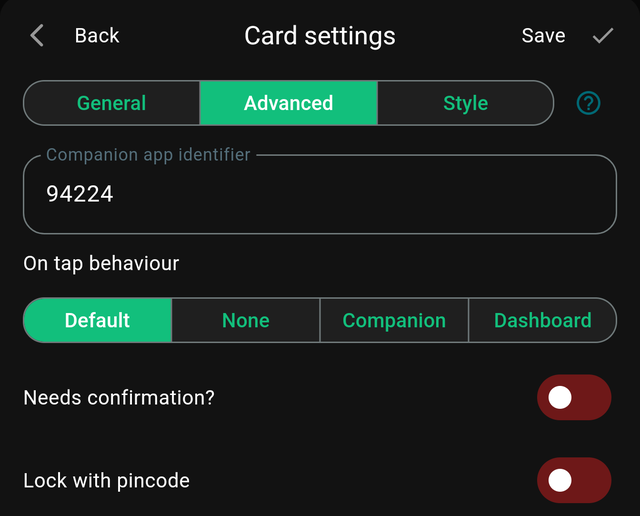
On tap behaviour
Four options:
| Option | What a tap does |
|---|---|
| Default | The card's natural action — toggle the device, run the flow, and so on |
| None | Nothing. The card becomes a display |
| Companion | Sends a webhook to the Homey companion app, so a flow can decide what happens |
| Dashboard | Opens another dashboard |
Default
What you want almost always. A light toggles, a flow runs, a lock unlocks.
None
Makes the card inert. Use it for readouts you do not want anyone pressing — a temperature tile on a wall panel at child height, for example.
Companion
The most flexible option. Instead of acting directly, the card tells Homey it was tapped, and a flow decides what to do.
This is how you get behaviour HDashboards has no setting for: one tap that runs a sequence, or a button whose meaning changes with the time of day. It requires the companion app installed on your Homey, and a Companion app identifier set on the card so the flow knows which card was pressed.
Dashboard
Turns the card into a navigation tile. Any card type can do this, not just the Dashboard card — a Title card or an Image card can open a dashboard too.
Companion app identifier
A name this card is known by to the companion app. It is used both to identify which card was tapped, and to target the card when a flow wants to change its colour or title.
A number is generated for you. Replacing it with something meaningful — kitchen-light, front-door — makes your Homey flows far easier to read later.
Keep identifiers unique unless you deliberately want several cards to respond as one.
Needs confirmation?
Shows a yes/no prompt before the card acts.
Right for anything disruptive but not sensitive:
- All lights off while people are still in the house.
- A flow that resets or restarts something.
- A heating change that is slow to undo.
It is a guard against a mis-tap, not a security measure — anyone can press Continue. For real protection use a PIN.
Lock with pincode
Requires a numeric code before the card will do anything. Turning it on reveals:
| Setting | What it does |
|---|---|
| Unlock time | Seconds the card stays unlocked after a correct code |
| Code | The accepted code. Several codes can be added |
This is covered in detail on its own page: PIN protection.
Choosing between confirmation and a PIN
| Needs confirmation | PIN | |
|---|---|---|
| Stops accidental taps | Yes | Yes |
| Stops other people | No | Yes |
| Friction | One tap | Entering a code |
Use confirmation for disruptive, a PIN for sensitive. Using a PIN everywhere makes a dashboard tiring; using it on the front door lock is exactly right.