
Give household members their own login and control what they can see.
On this page
HDashboards lets you give household members their own login, with their own view of the house. Reached from the side menu → User management.
This is the feature many people come to HDashboards for: Homey itself has no equivalent.
Adding a user
Tap + and fill in:
| Field | Notes |
|---|---|
| First name | Used in the greeting on the overview |
| Last name | |
| Their login, and must be a valid address | |
| Password | At least 3 characters |
| Can access settings | Whether they may change app settings |
They then sign in on their own device with that email and password, and see the house through the permissions you gave them.
Changing a password
Editing an existing user leaves the password field empty, with the hint Leave empty to keep current password. Type a new one only if you actually want to change it.
Can access settings
Controls whether this person may open the Settings screen.
Turn it off for children, guests and anyone using a shared wall panel. It stops the startup dashboard, theme and kiosk settings being changed by whoever is passing.
Dashboard access
Below the account fields, every dashboard you own is listed with four independent permissions. Tick only what that person needs.
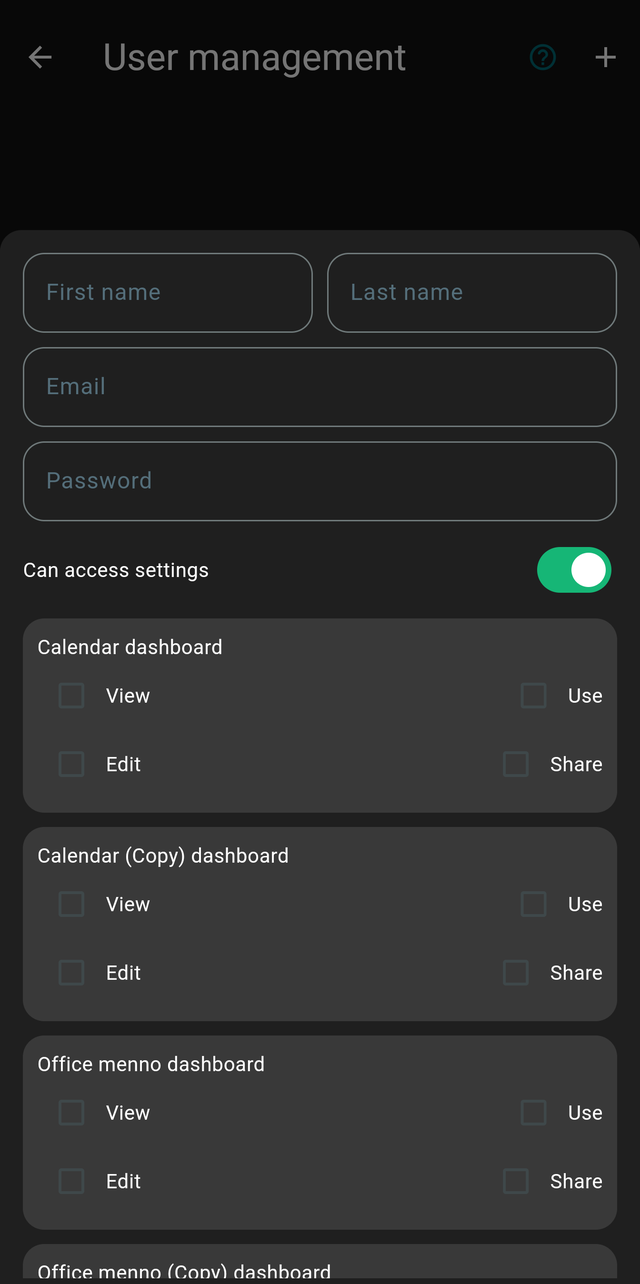
| Permission | What it allows |
|---|---|
| View | The dashboard appears on their overview screen and can be opened |
| Use | They can actually operate the cards. Without it the dashboard is visible but every card is inert |
| Edit | They can enter edit mode and add, move, change or delete cards |
| Share | They can use the share options, including the authenticated URL |
The useful combination is View + Use with Edit and Share left off: the person can control the house but cannot rearrange your dashboards or hand out a link that signs someone in.
View without Use is a genuine display mode — a screen someone can read but not touch. That is a good fit for a hallway panel showing the weather and the timeline.
Because Share hands out the authenticated URL, which signs the holder in, it is worth being sparing with. See Sharing and wall displays.
A Dashboard card pointing at a dashboard someone cannot view will not open for them.
Some patterns that work well:
- Children — one simple dashboard with View and Use: their room's lights, the weather, a music card. No security, no locks, no settings.
- Guests — View and Use on the living room dashboard only.
- A partner — everything ticked, same as you.
- A wall panel — its own dedicated account with View and Use on the dashboards that panel should show, and Edit and Share left off. The panel then cannot be used to rearrange dashboards or leak a sign-in link, and its account can be changed without touching yours.
Permissions versus PIN codes
These solve different problems, and they compose well:
| Users and permissions | PIN protection | |
|---|---|---|
| Applies to | A person's account | One card |
| Enforced | On their login | On the dashboard |
| Good for | Deciding what someone can see at all | Guarding a sensitive card on a shared screen |
Permissions are the stronger control: a dashboard someone cannot open is genuinely out of reach. A PIN guards a card on a screen everyone can already see.
For a wall panel in a hallway, use both — a limited account for the panel, and a PIN on the front door lock card.
Tips
- Give the panel its own account. Never sign a shared wall panel in as yourself.
- Review it occasionally. A guest account created for a visit is worth removing afterwards.
- Names matter. The greeting on the overview uses the first name, which is a quick way to confirm which account a panel is running as.