
The home screen that lists every dashboard you are allowed to see, in folders, as tiles or a list.
On this page
The overview is the first screen you see after signing in. It greets you by name and lists every dashboard you are allowed to open.
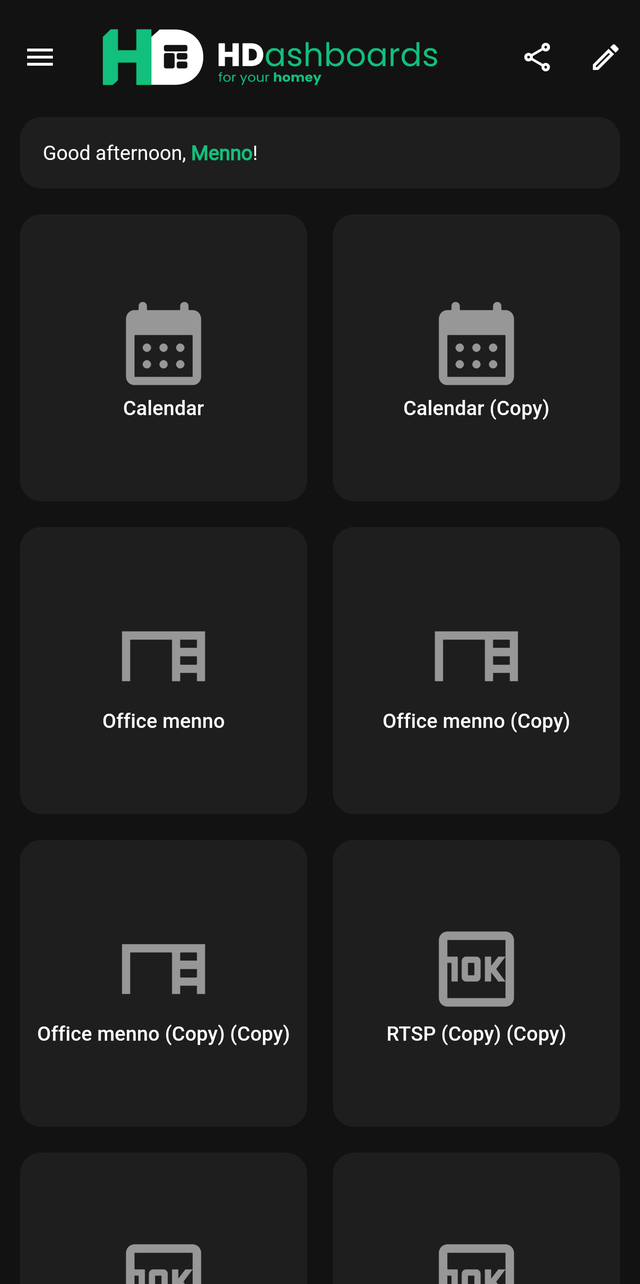
The greeting
The message changes with the time of day — Good morning, Good afternoon, Good evening, Good night. It is cosmetic, but it is a quick way to confirm the app knows who is signed in, which matters when several people share a wall tablet.
The dashboard tiles
Each tile is one dashboard. Tap to open it.
The ⋮ button on every dashboard (or a right-click with a mouse) opens its menu:
| Option | What it does |
|---|---|
| Open | Opens the dashboard |
| Edit dashboard | Name, icon, background and the other dashboard settings. Only shown if you are allowed to edit it |
| Move to folder | Puts the dashboard in a folder, or back at the top level |
If you have set a background image on a dashboard, the tile shows it. Otherwise it shows the dashboard's icon.
Which dashboards appear depends on your account. A household member whose permissions limit them to two dashboards will only see those two. See Users and permissions.
Tiles or list
The two buttons at the top right switch between Tiles, the large squares, and List, one compact row per dashboard with its icon and name. The list fits many more dashboards on a screen, which helps once you have more than a handful.
The choice is remembered on each device, so a wall tablet can keep tiles while your phone uses the list.
Folders
Folders keep a long list of dashboards tidy, much like the folders for flows in the Homey app. Organise them by room, by floor or by person, whatever matches how you look for them.
- Open or close a folder by tapping its name. The number next to it counts the dashboards inside, including those in its subfolders. Which folders are open is remembered on each device.
- Create a folder with New folder, above your dashboards.
- Move a dashboard into a folder by long-pressing it until it lifts, then dragging it onto the folder. To take it out again, drag it onto the Drop here to take it out of its folder strip that appears at the top while you drag.
- Or use the menu: ⋮ on the dashboard, then Move to folder. Pick a folder, Top level (no folder), or New folder to make one on the spot. This is the easier way when the folder is far down a long list.
- Rename, nest, move or delete a folder with the ⋮ button on the folder. Folders can be nested up to five levels deep.
Deleting a folder never deletes a dashboard: everything inside it, dashboards and subfolders alike, moves up one level.
Folders are personal
Every login has its own folders. A household member can sort the dashboards shared with them however they like, and it does not change the owner's overview, or anyone else's. A dashboard that has just been shared with you appears at the top level until you move it.
The top bar
| Control | What it does |
|---|---|
| ☰ menu | Opens the side menu |
| Share | Share this dashboard, or copy an authenticated URL |
| Bin | The trash bin with deleted dashboards. Shown if you can edit at least one dashboard |
The side menu
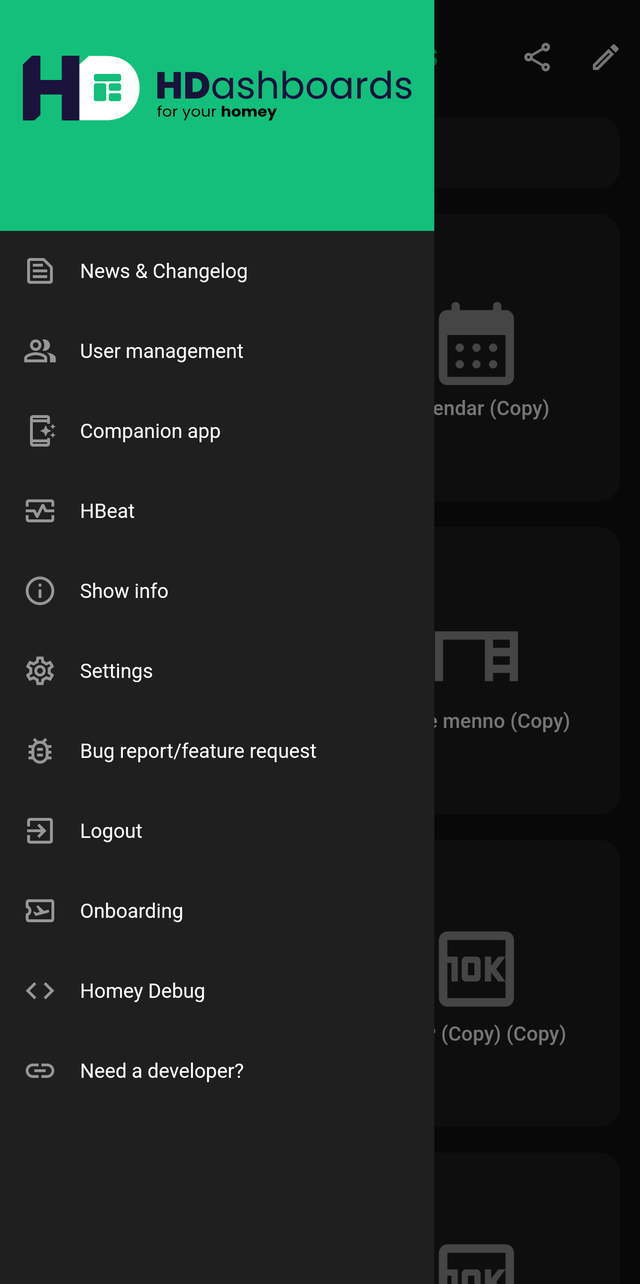
At the top you see who is signed in and which Homey this device is connected to. Below that the menu is split into groups:
| Item | What it does |
|---|---|
| News & Changelog | What changed in recent releases. A green dot means there is something you have not read yet |
| Manage | |
| Settings | App-wide settings (more) |
| User management | Add and edit household logins (more) |
| Companion app | Set up the Homey companion app (more) |
| HBeat | Uptime monitoring for your Homey |
| Help & more | |
| Documentation | These docs |
| Bug report/feature request | Send feedback |
| Onboarding | Replay the introduction |
| Homey Debug | Live event counters, for diagnosing a busy Homey |
| Need a developer? | The website of the developer behind HDashboards |
| Logout | Sign out, at the bottom of the menu |
Items with a small arrow open in your browser. Items a household member is not allowed to use are greyed out.
The version you are running is shown under Logout. Tap it for the full version number, which is useful to mention when you report a problem.
Skipping the overview
If you always want to land on the same dashboard — normal for a wall panel — set a Startup dashboard in Settings. Leave it empty to keep landing on the overview.