By default, you can't use an RTSP stream from Unifi. Fortunately, there's a workaround.
Step 6 is the most import one.
1) Log in to your Unifi Protect application and go to your devices 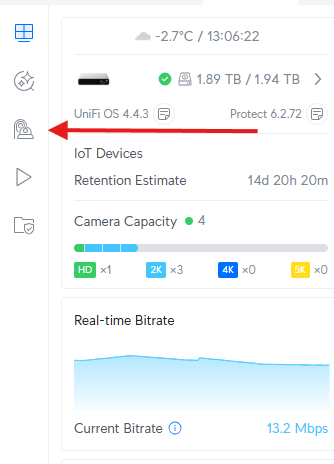
2) Go to the camera settings.

3) Scroll down until you see "Share Livestream." Click on this and select "Enable Secure RTSPS Output."
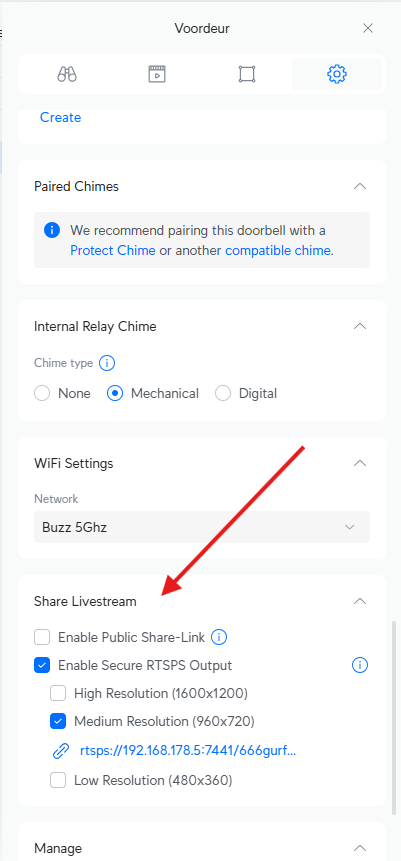
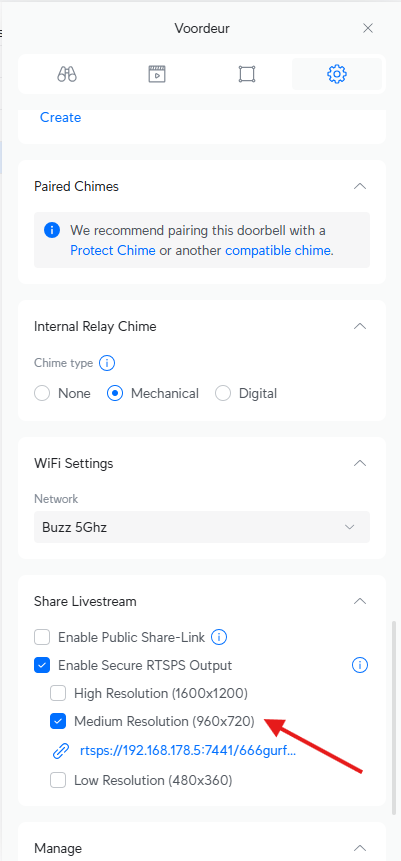
4) Select the desired quality and enable it.
5) Copy the generated link.
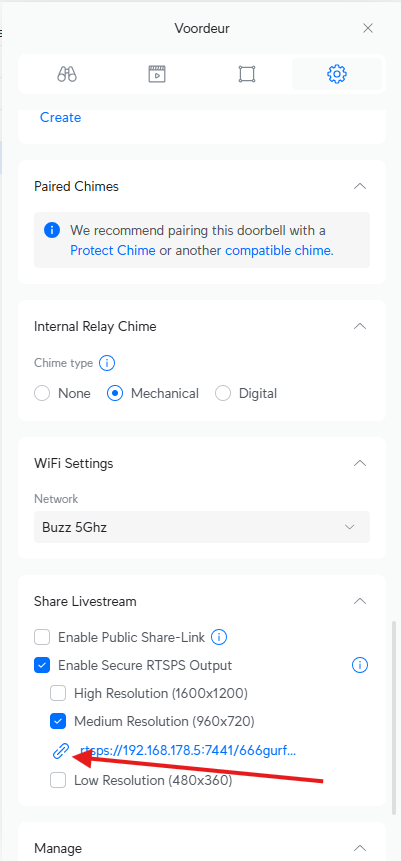
6) Edit this link. Remove the last "S" from RTSPS and change the port from "7441" to "7447."
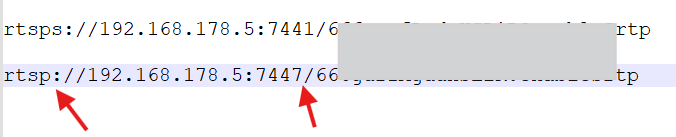
7) Now copy the entire edited link, and this is your RTSP stream.
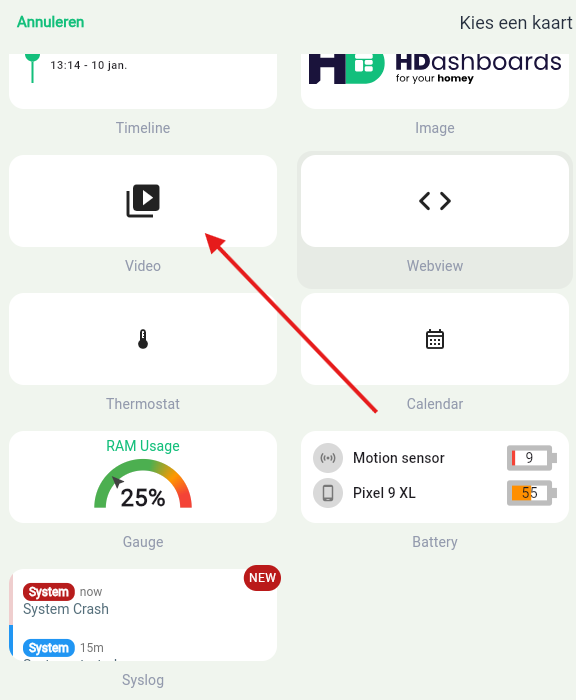
8) Open HDashboard and create a new "Video Card"
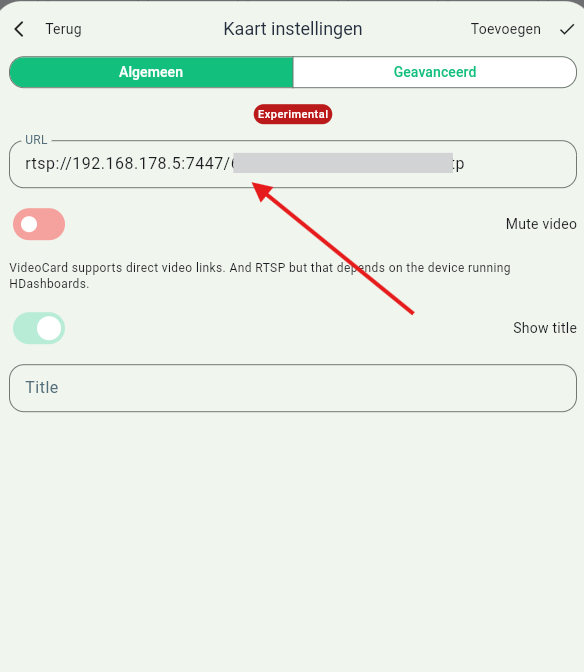
9) Paste the copyed Link and save it.
10) Now you can see your RTSP stream in HDashboard
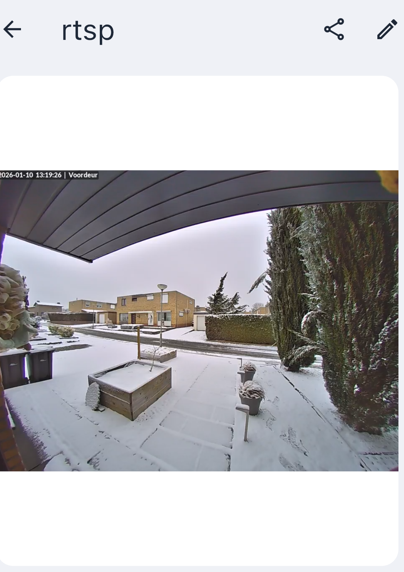
RTSP streams are only available on a mobile device and not in the WebApp
