Note: Use this with caution, as it can make other apps or the entire Android system unreadable. Use at your own risk.
Want to maximize your android Hdasboards screen tiles?
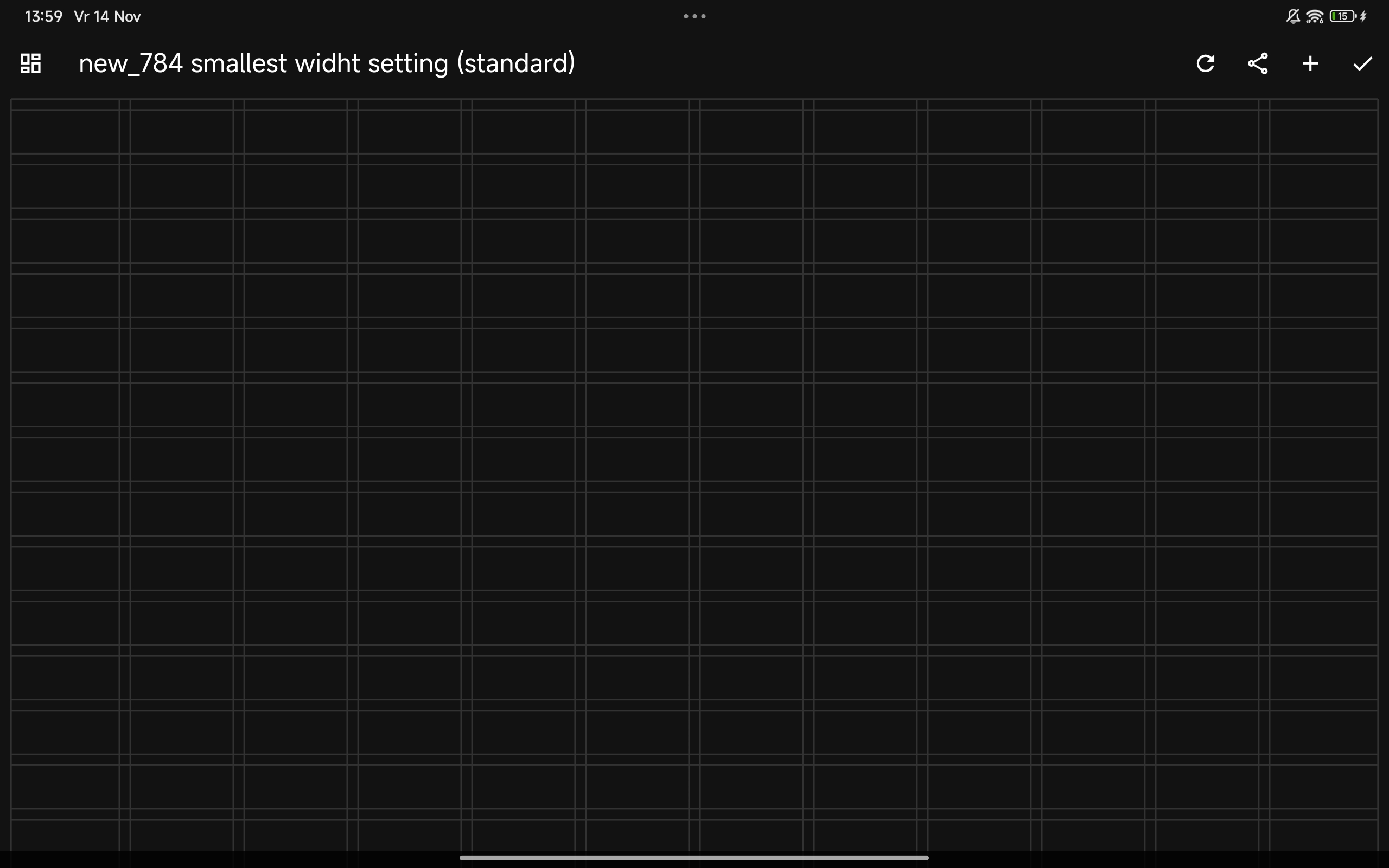
Standard most android tablets allow you to have dashboard dimensions of approx. 13 x 14“ “boxes/columns” (w x h) to place tiles.
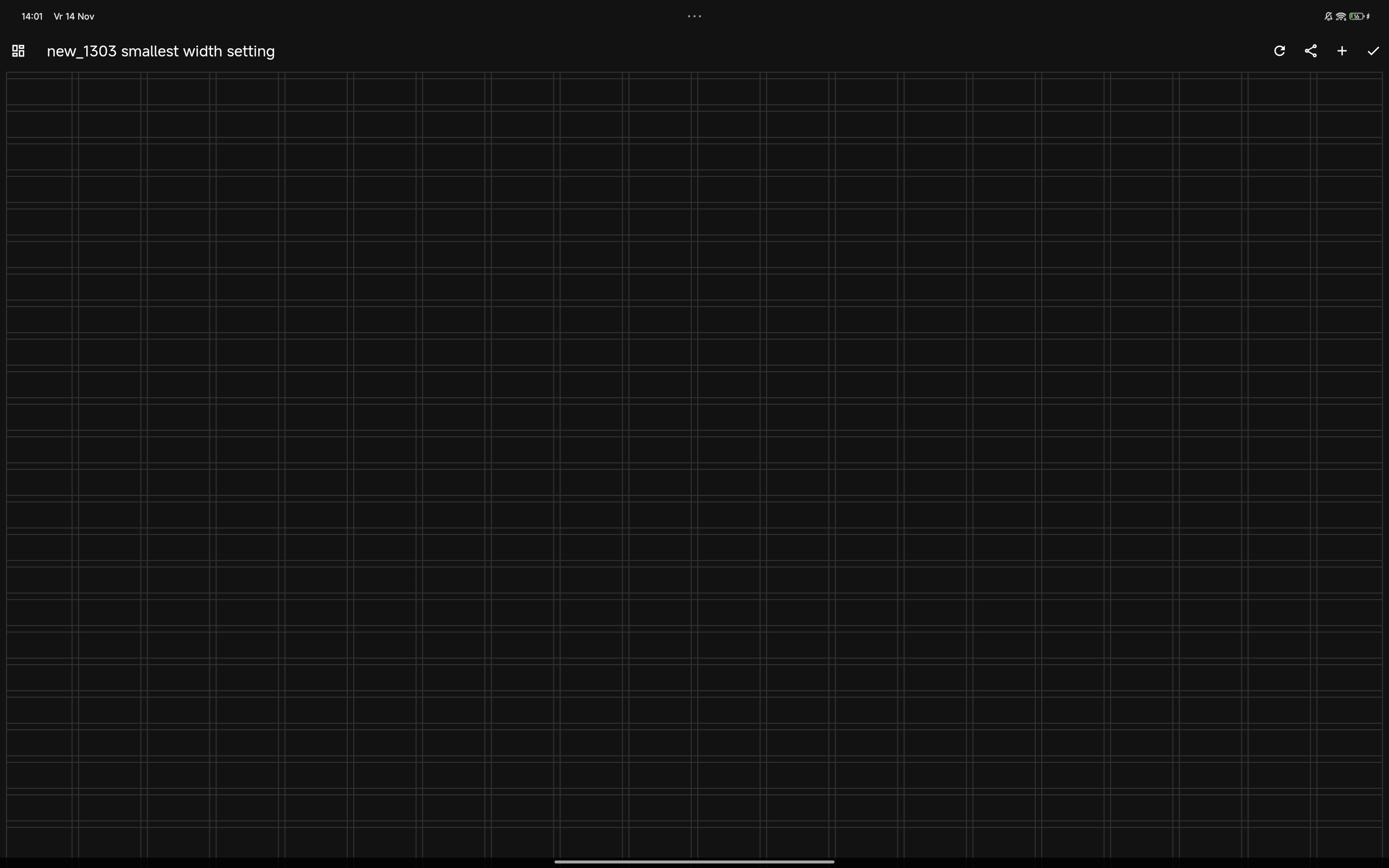
You can increase this number to be able to place more tiles, upto 20 x 25 (w x h). This max is depending on your device.
This tutorial is written (and tested) on nov. 14th 2025, tested on:
- Android 15 running on a Xiaomi redmi pad pro (2560 x 1600 pixels)
- Android 13 running on a Lenovo Tab M10 Plus 3rd Gen (2000 x 1200 pixels)
- Android 8.1.0 running on an Samsung Galaxy Tab A 2016 (1920 x 1200 pixels)
1: First change the maximum width of your dashboard in the app settings of Hdashboards.
- Go to the Dashboard page.
- Click Edit for the specific dashboard.
- There, you should find an option to set the dashboard's maximum width, often translated as the number of “boxes or columns or tiles” on the X-axis (horizontal). Increasing this number will allow more “boxes/comlums” to fit side by side.
2: Screen Resolution or 'Smallest Width' (Android Only)
If you have reached the max width in step 1, and want more, you can change the overall scaling of your device, which tricks apps into thinking the screen is larger:
- Go to Developer Options on your Android device. (You may need to enable this first in the phone/tablet settings by repeatedly tapping the build number.)
- Look for the "Smallest width" (kleinste breedte) setting.
Increasing this number will make everything on the screen smaller (the scale changes), creating more space for the HDashboards app to display more boxes/columns/tiles.
Note: Use this with caution, as it can make other apps or the entire system unreadable.
Note: Always note the settings before you change them so you can return to standard.
Note: Texts might become difficult to read based on the physical size of your screen and the distance you want to read it from.
3. Decrease the characterize in Android to have longer texts in the tiles. In some cases it might also increase the dashboard dimensions (number of boxes/columns/tiles) . I have not found that this is the case. I my case it only allowed to have longer texts in my tiles and titles.
4. To add one more height “box/column/tile” remove the top menu via the settings menu in Hdasboards.
Note: The max I have reached on both the Xiaomi redmi pad pro (2560 x 1600 pixels) and the Lenovo Tab M10 Plus 3rd Gen (2000 x 1200 pixels) was 20 x 25 “boxes/columns/tiles”. System standard for both was 13 x 14.The older Samsung Galaxy Tab A 2016 could be improved but the screen started flickering, so I would not recommend trying this on older devices nor on Android phones as the charaters may become so small you can't read it anymore and returning to standard becomes a real challenge.
Before:
After: